With Codex connected to the Smartsheet MCP server, you can interact with your Smartsheet data using natural language.
Required plan: Business, Enterprise, or Advanced Work Management
Here are the instructions for configuring the MCP server connection in Codex.
In Codex, at the bottom of the sidebar, select Settings. The settings page appears.
In the left sidebar, select MCP servers, and then select + Add server in the Custom servers section. A server connection form appears.
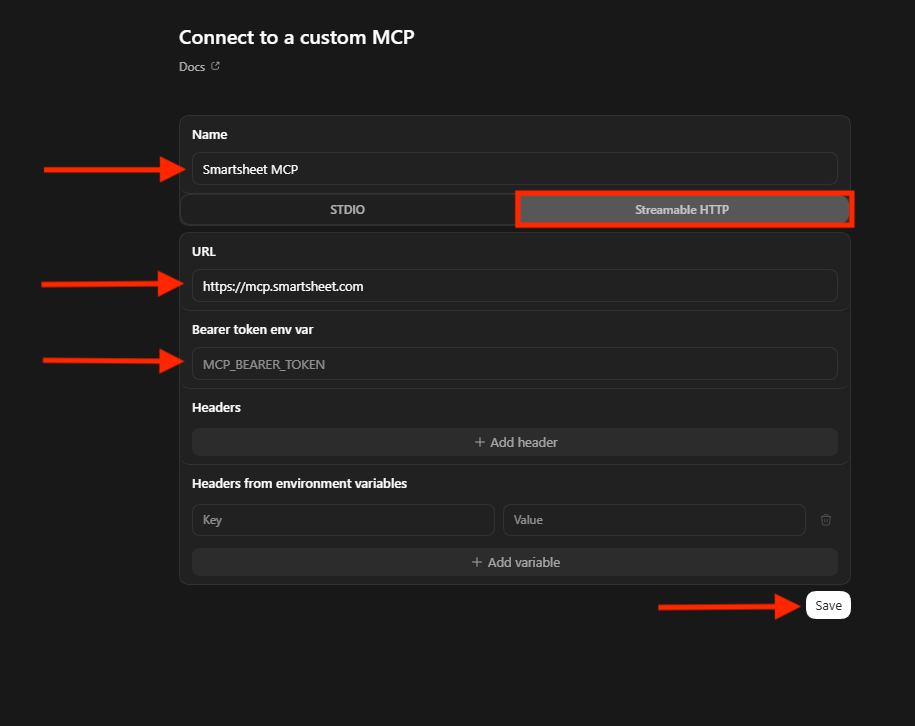
Specify the following items in the form:
Name: An arbitrary name for the Smartsheet MCP server connection
Streamable HTTP: (Toggle on this option)
URL:
https://mcp.smartsheet.com(If you're using a regional server outside the US, specify that region's URL)Bearer token env var: Enter the name of the environment variable for your Smartsheet API token.
Save your changes.
Restart Codex.
Test the MCP server connection with a prompt.
List the Smartsheet MCP server tools.The response includes Smartsheet tools such as
get_sheet_summaryand more.
You've connected Codex to the Smartsheet MCP server.
Now that you've connected to the Smartsheet MCP server, you can interact with your Smartsheet data in a conversational way.
Check out the example prompts in Smartsheet MCP prompt cookbook.
Want to learn more about the MCP server's capabilities? Visit Smartsheet MCP server tools.